WatchpostDownload

Add devices, organise sites, reach them from anywhere

Devices are only half of the job. Watchpost also keeps the list of what you look after: where each device is, how it is reached and who has access.

Every step of adding a device is described in the help. Adding a device

Add a device

One window, three sources. Pick how the device is known to you and fill in what you have.

  • By address: pick the protocol or let the search recognise it
  • By Xiongmai Cloud ID: the serial number from the sticker, no address needed
  • By Hik-Connect account: all devices of the account at once, or one by serial number
  • On a Mac, network search lists what it finds, names the vendor and marks what the app can do: add, partly, not supported
  • On an iPhone, scan the QR code or the barcode on the sticker
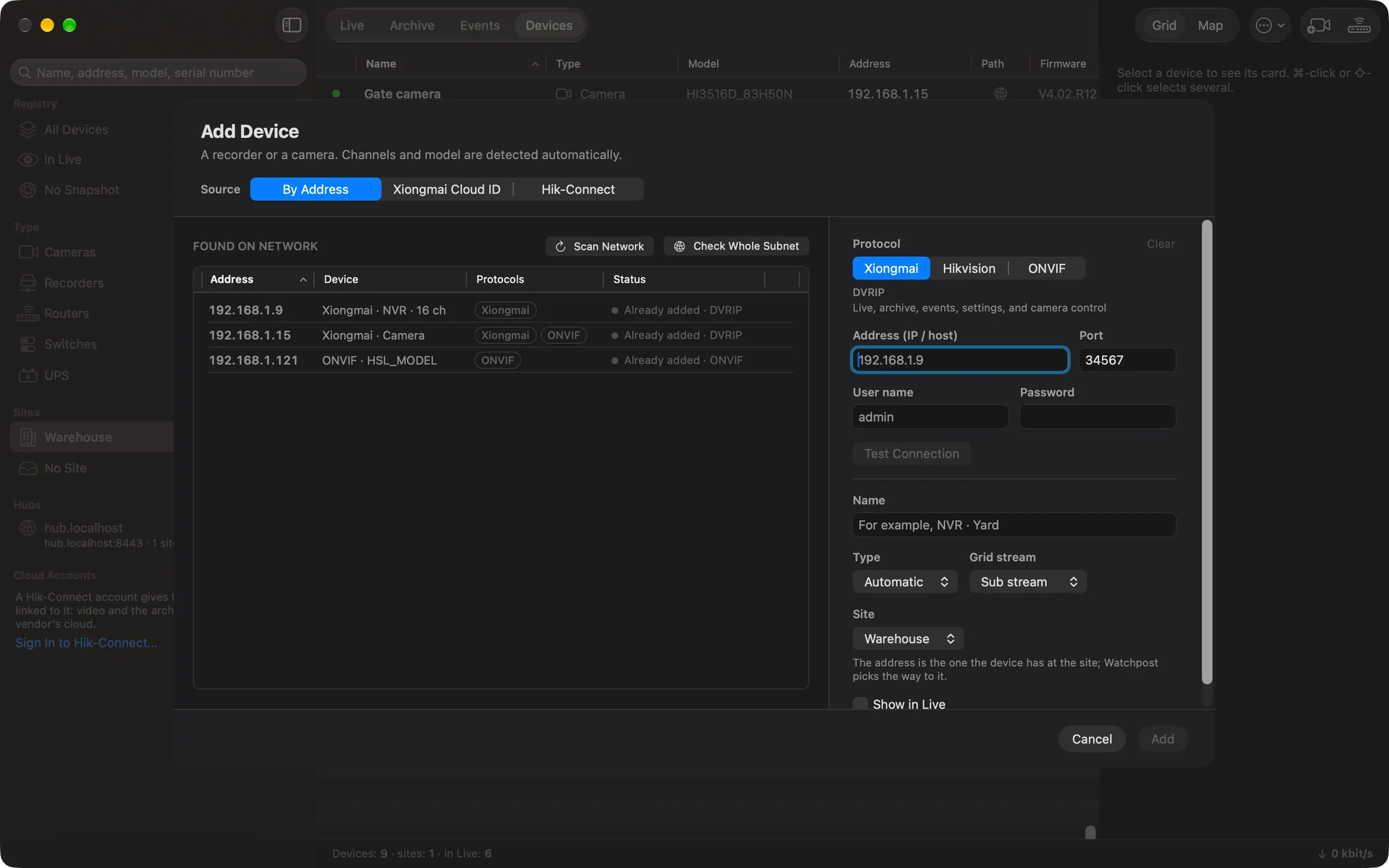
The Add Device window: devices found on the network on the left and the form on the right.

Sites and equipment

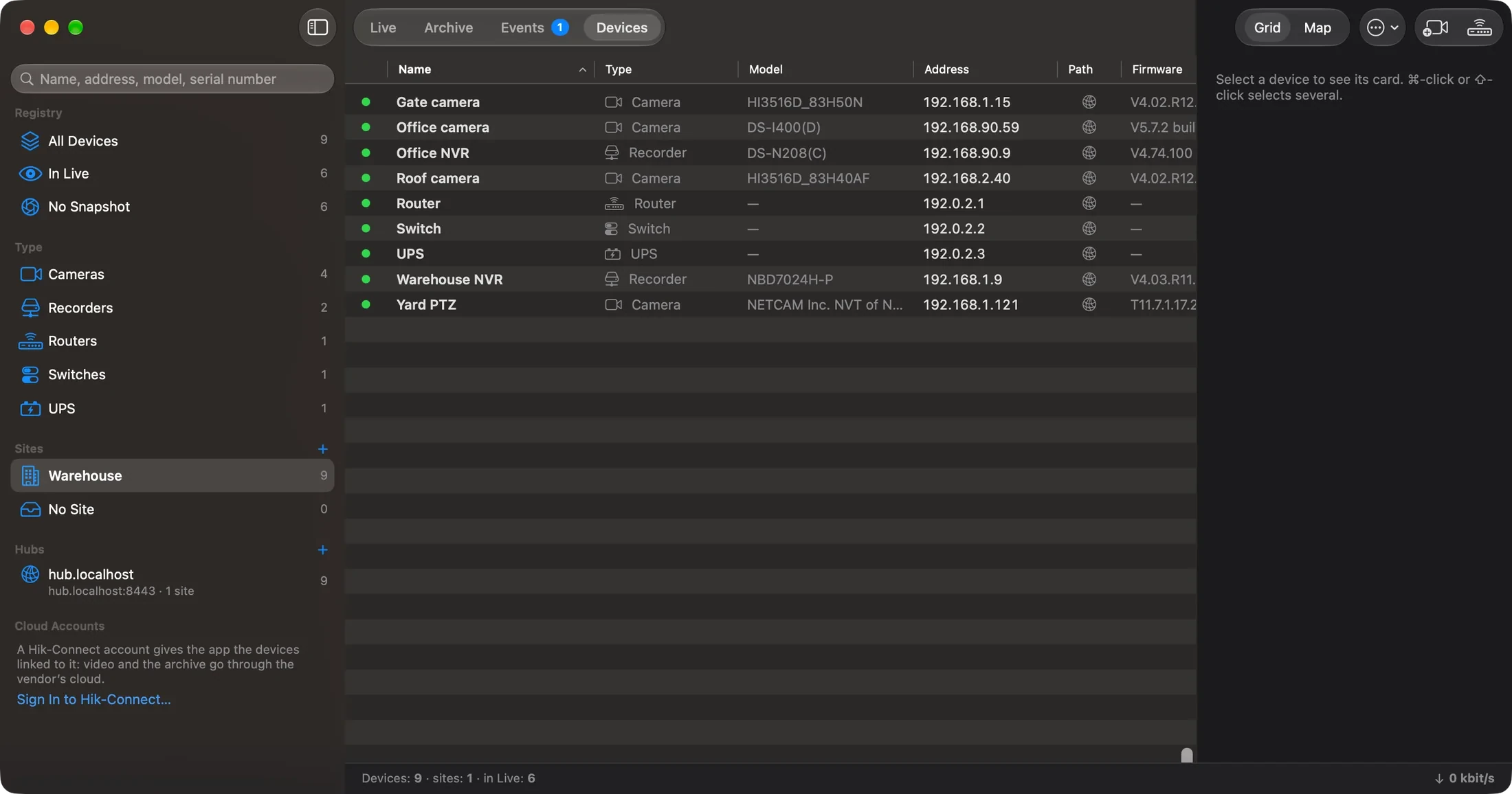
Group devices under sites and see at a glance what answers. Routers, switches, radio bridges and UPS units live in the same list as cameras.

  • A dot shows whether each address answers, checked every 30 seconds while the screen is open
  • The Path column says how a device is reached: directly, through a hub, over a VPN or through a cloud
  • A router's web interface opens from the list, and its password copies from there
  • Every device and every recorder channel can be put on a map
The Devices screen: cameras, recorders, a router, a switch and a UPS grouped under a site, with their types and paths.

Vendor clouds

When a device has no reachable address, the vendor's cloud is the only way in. Watchpost works with two and says plainly that the traffic goes through the vendor's servers.

  • Hik-Connect: live view and archive, the full settings window, several accounts side by side
  • Share access with another account, accept an invitation, ask the owner to approve a device
  • Xiongmai Cloud ID: live view, settings and events by serial number
  • The app reuses the session instead of signing in on every start

Your own hub

When even the cloud is not an option, the site router dials out to a hub on your server. The app manages hubs the way it manages devices.

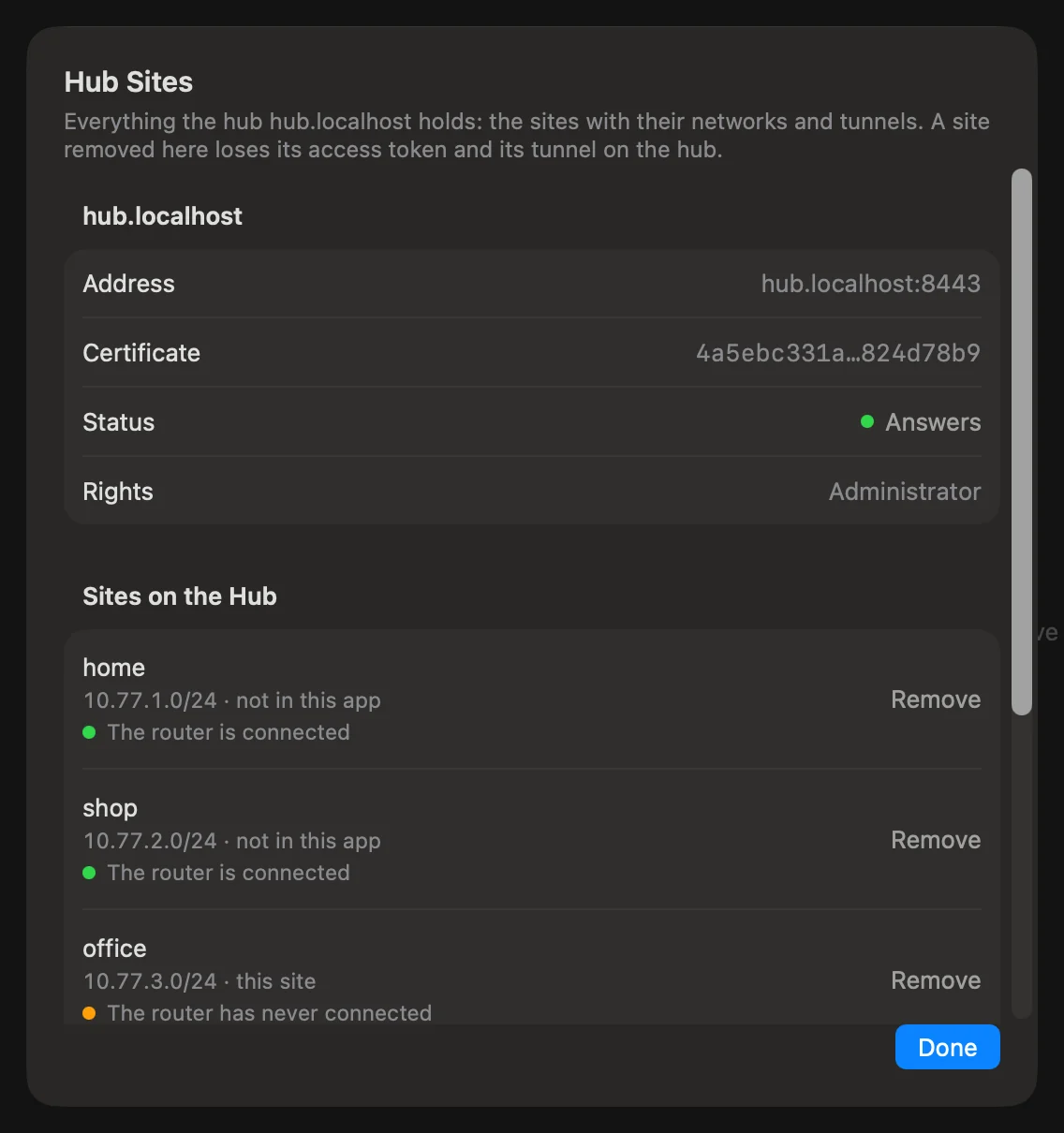
  • A list of hubs and a screen for each one with its sites and tunnels, refreshed every 30 seconds
  • The wizard adds a site to the hub and writes the router script
  • Hand a site to a customer: an export without the router key, with a token of their own
  • One site can have several networks, up to eight
How remote access works
The hub screen: the sites on a hub with the state of each router.